Make an animated ASCII cover from your artwork
Turn your cover art into a six-second backdrop for a release announcement. Keep the picture recognizable while its letters pulse.
Open the headphones artwork with the alphabet, square canvas and Breathe animation already set. The editor opens in a new tab.
Open this look (opens in a new tab)Give the release something that moves.
The artwork already tells listeners which release they’re looking at. Keep its main shape still and let the letters change weight, so the motion doesn’t compete with the name or date. After exporting the loop, add your track excerpt and release details in your video editor.
Bring an image of your artwork, or start with our headphones example. You’ll keep the subject recognizable, add a gentle loop and export a short animation.
Open the look and bring in your artwork.
Open this look (opens in a new tab). Open Source near the top of the settings panel on the right. Scroll to the controls below the preview, then expand Source. Tap Show Controls first if they’re hidden. The headphones example opens with the treatment ready. To use your cover, click Drop Image / Video in Source and choose the image from your device.
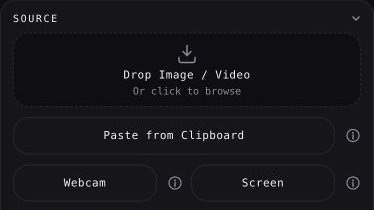
Start with the artwork without small release text if you have that version. Large shapes survive the character grid; tiny lettering often becomes texture. Keep names and dates as a separate layer in the final announcement.
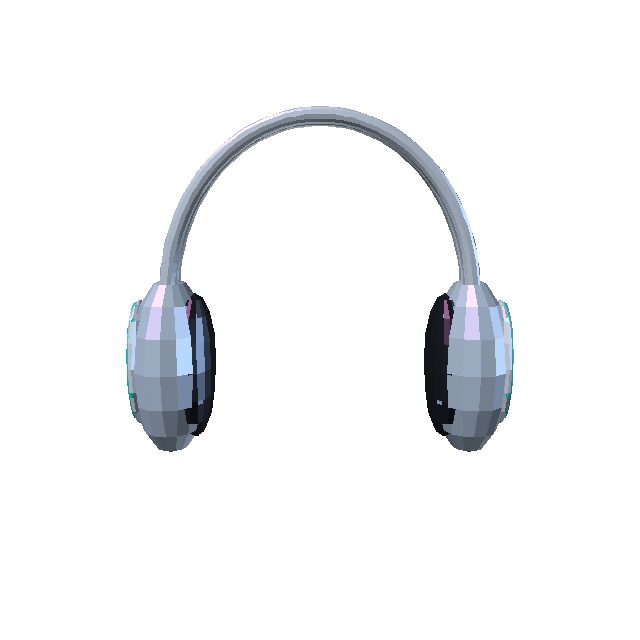
Frame the part people recognize.
In the right panel, open Layout, below Remove Colors. Scroll down the controls to Layout and expand it. The example uses a square canvas. In Layout, choose Canvas Size → Custom and enter matching Width and Height values, then Apply Size. The supplied look uses 900 × 900. The Square preset is another quick starting point.
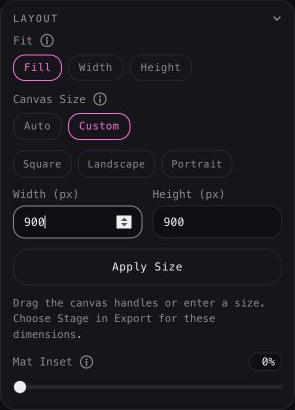
Use Fit → Fill to fill the frame. If it cuts off an important edge of your cover, try Width or Height. Then look at the artwork at phone size: the main shape should still be easy to pick out.
Give the letters a little movement.
Open Animation near the bottom of the right panel, between Developer and Export. Scroll to Animation, just above Export. Breathe is already selected. It makes the characters grow heavier and soften again while keeping the picture in place. Start with Intensity at 30% and Speed at 0.60×.
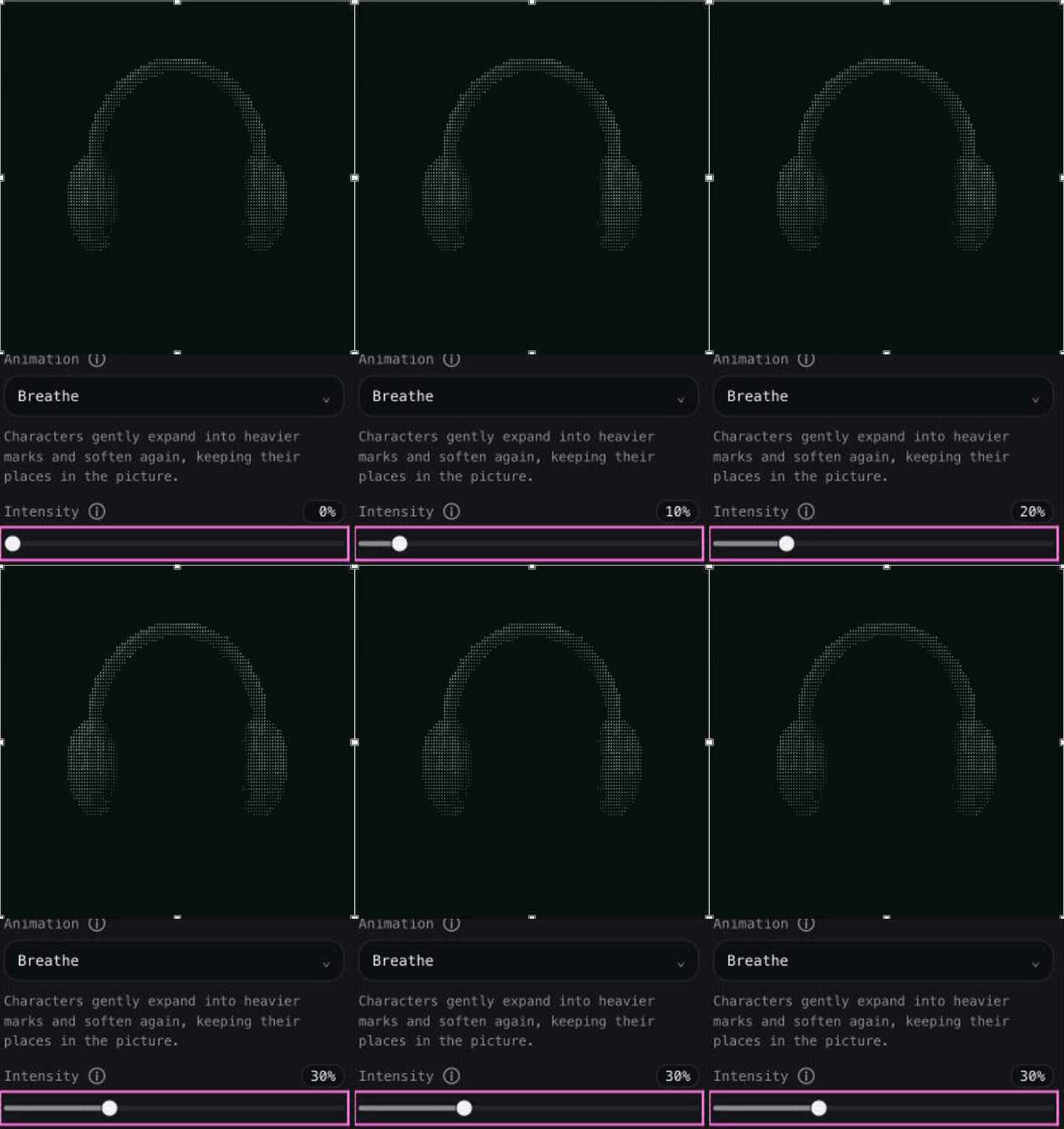
Watch a full cycle before changing anything. Lower Intensity if the subject gets hard to recognize. For a different alphabet, open Style → Characters → Alphabet below the artwork; on a phone, open Style in the controls.
Export a short loop, then add your track.
Scroll to Export at the bottom of the right-hand panel. Tap Export below the preview to jump to the export controls. Click Export GIF. In the dialog, keep Length at 6 seconds, select 15 under Frame rate, choose Stage for the sample’s 900 × 900 size, and leave Loop on. Click Export GIF, wait for the preview, then click Download GIF.
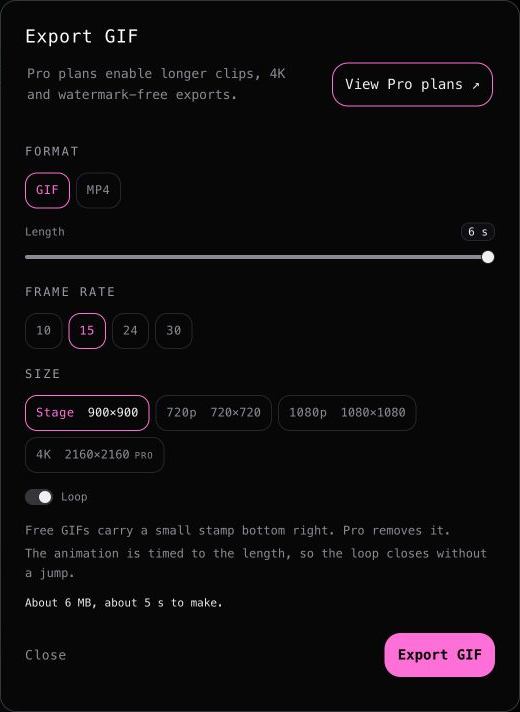
For a video announcement, choose Export MP4 if it’s available to you. Import that silent clip into your video editor, add your track excerpt and release details, and export the finished announcement. Check the first and last frame together so the repeat feels intentional.
MAKE IT YOURS
Try it with the artwork for your next release.
Opens in a new tab.